
Excel Table Trick # 11. Selection made easy
You cannot escape selection in excel and its like addiction. But as usual addictions comes with problem and you might find selecting long data painful well tables come with selection features as well.
Selection with mouse
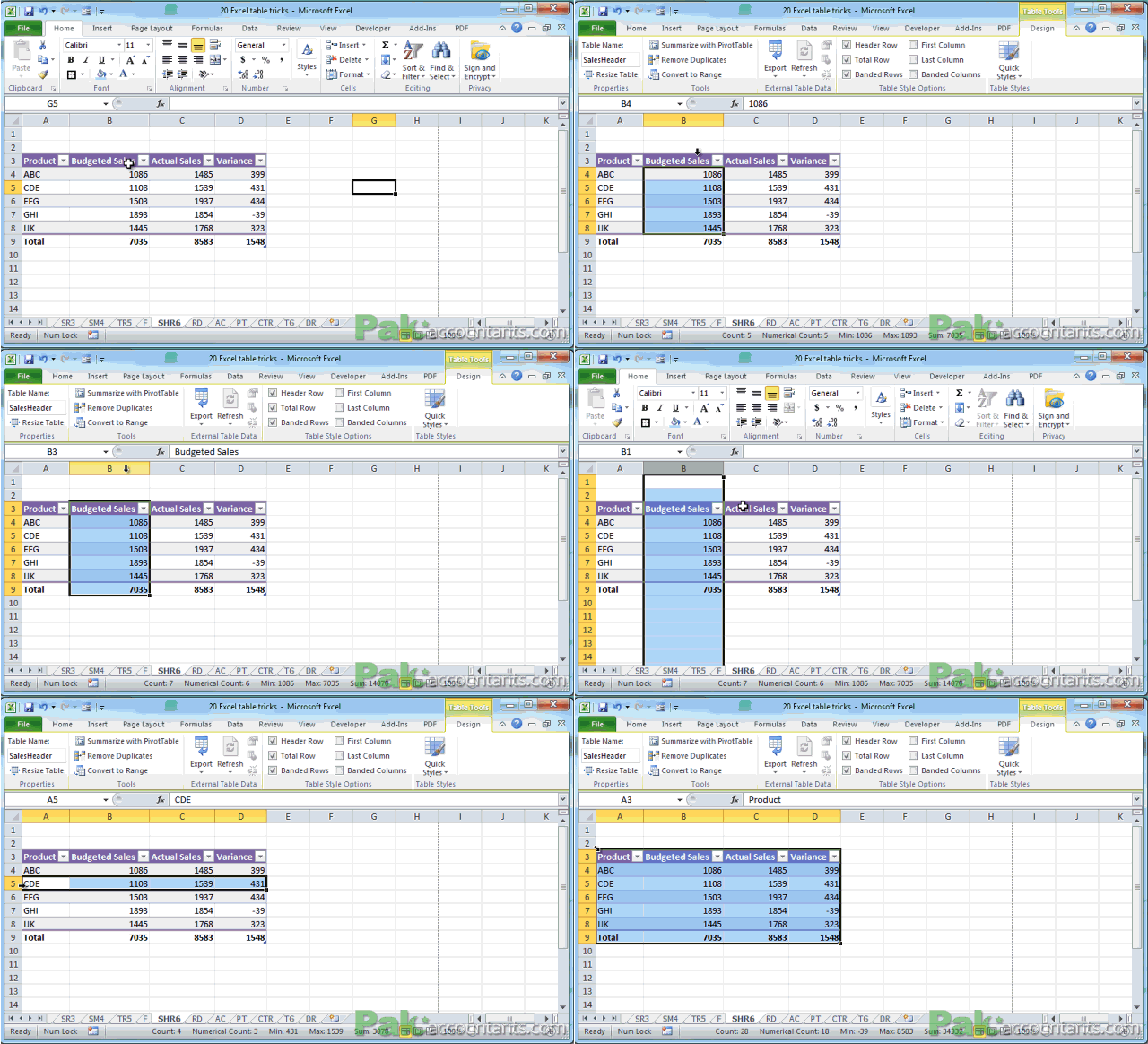
To select the whole column of table just move pointer to the edge of table (not out of table) and it will turn black in color pointing downwards, click once and it will select the whole data inside column. Click twice and it will select the header and total row as well.
If you move cursor far out of table it will help you select the whole column of the worksheet.
To select table’s row simply move the mouse cursor to the edge of that row but not out of table and it will turn black pointing right. Click once to select the table’s row. If you move cursor far left out of the table it will help you select the entire row of worksheet.
You can select whole table at once by moving mouse pointer at the top left corner of the table. Pointer will turn black pointing diagonally to bottom right corner of worksheet. Click once and whole table is selected.
You can also select multiple rows or columns by hover mouse pointer at the edge of table then click and drag to make multiple row/column selection.
Selection with keyboard
Having an active cell within the column of table you want to select press Ctrl+Spacebar. Hitting once will select the column data. Hitting twice will select the whole table column including header and total row. Hitting third time selects the whole column of worksheet.
To select the row of table, have active cell within that row and hit Shift+Spacebar. Hitting this combo once selects table row, hitting twice will select the entire row of worksheet.
To Select multiple column or rows then after selecting a single column or row as stated above press and hold Shift key and use directional keys to extend the selection
To select the entire data inside table hit Ctrl+A or Ctrl+Shift+Spacebar once. Hitting any of the two twice will select the entire table including headers and total row. Hitting any of the two thrice will select the whole worksheet.
Excel Table Trick # 12. Table headers replace excel’s default column headers
Normally if you have headers in first row and data is extended long down the rows then scroll down will hide the header row and its a bit frustrating as you have to scroll up and down back and forth to know what column holds what data. Possible solutions are freeze panes or split window.
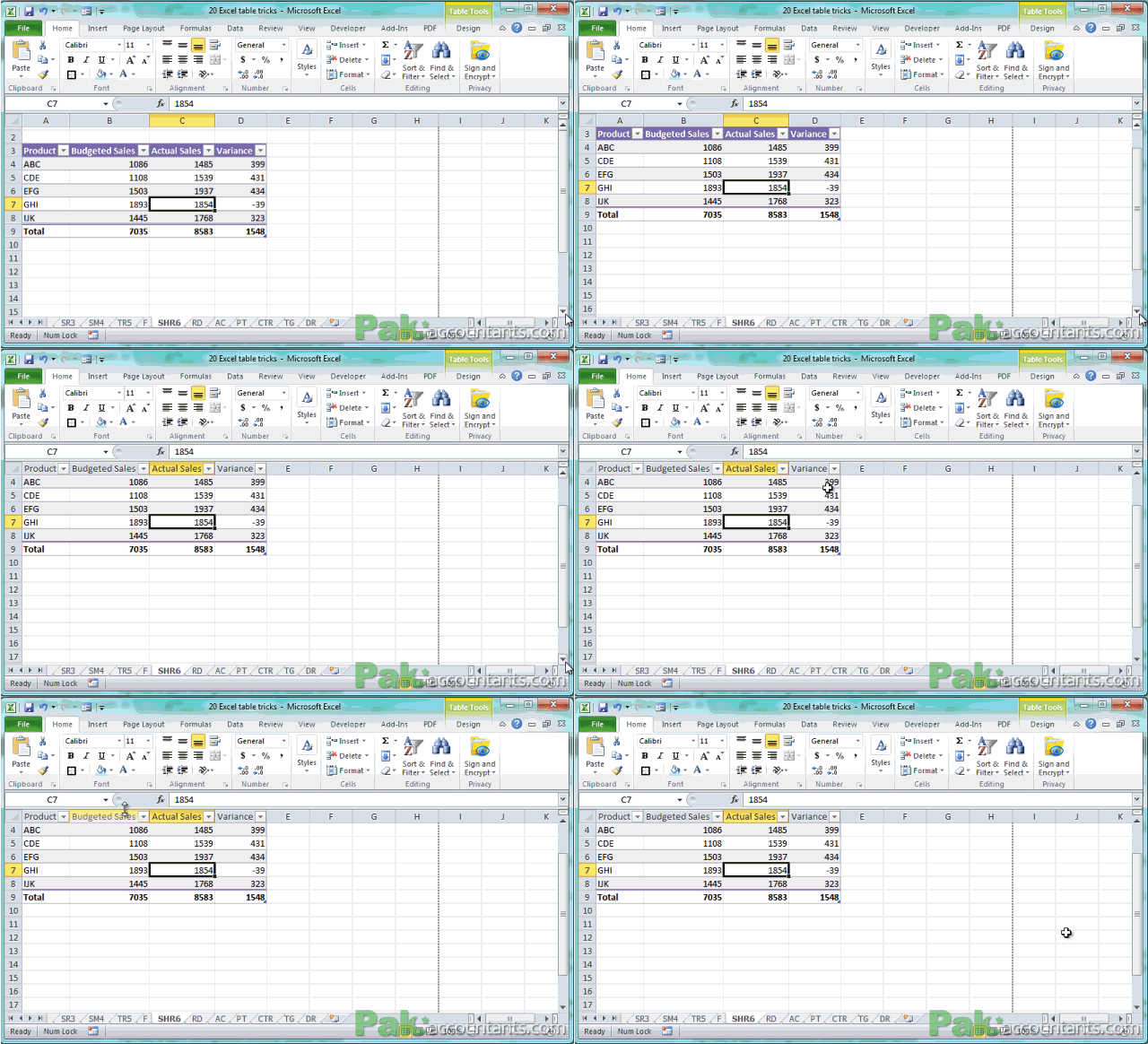
But with tables you don’t have to do this. Having an active cell within table if you scroll down and just when headers are about to get disappear in the fold, headers replace the default column letters with Table’s headers. Such a clever little feature!

very resourceful material to learn excel in out
@Mike thanks 🙂 help spread the word so that others in need can also get it