
Excel Table Trick # 7. Dedicated row loaded with formula
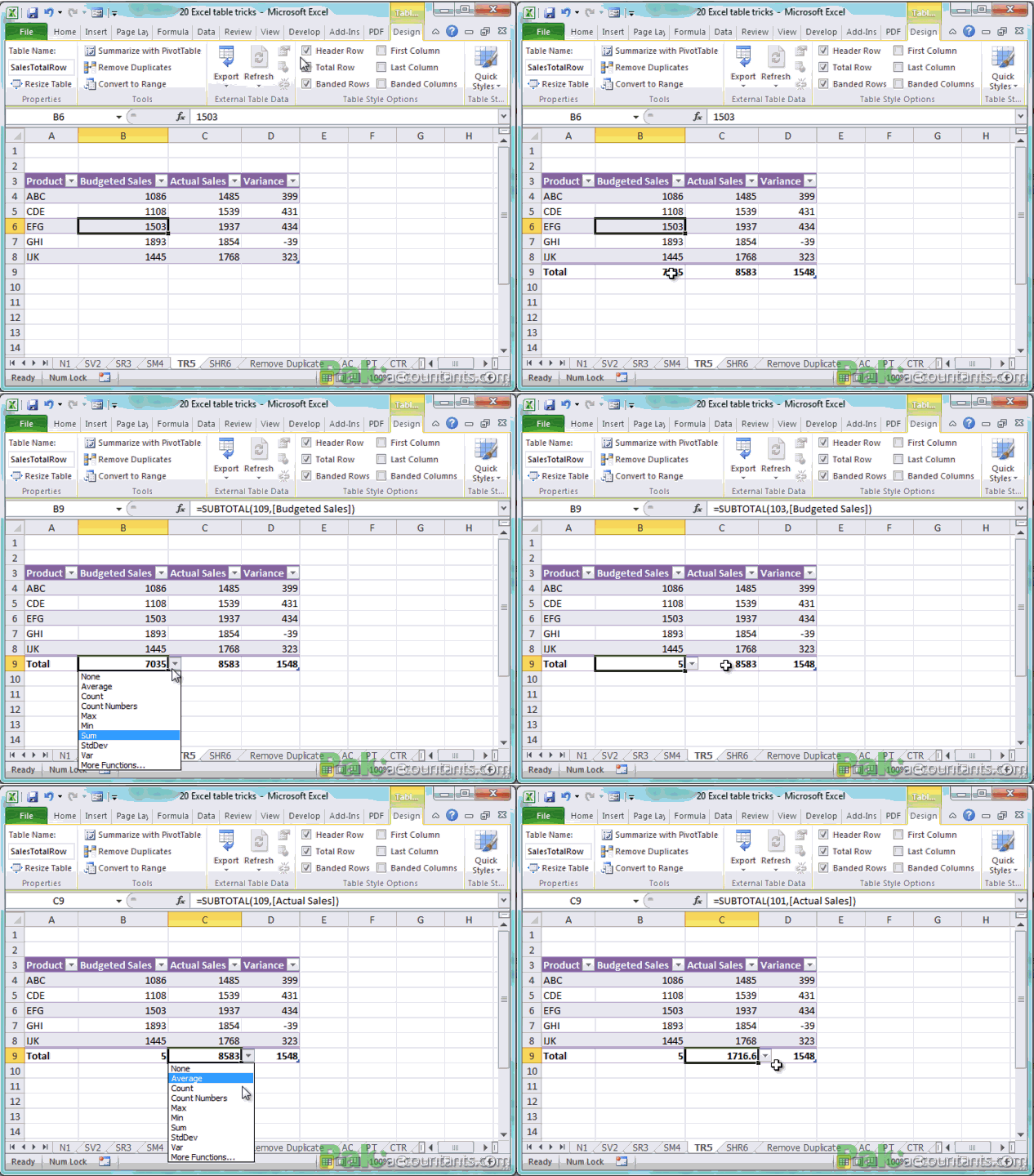
On click of a button you get a dedicated row that comes loaded with formula. And a little formatting is done for you as well so that it stands out from the rest of the data.
Although it is called total row and by default sums up the values to give the total but one does have several options to select from the drop down menu and it definitely not limited to given formula you can insert your own formula.
Excel Table Trick # 8. Remove duplicate options by default
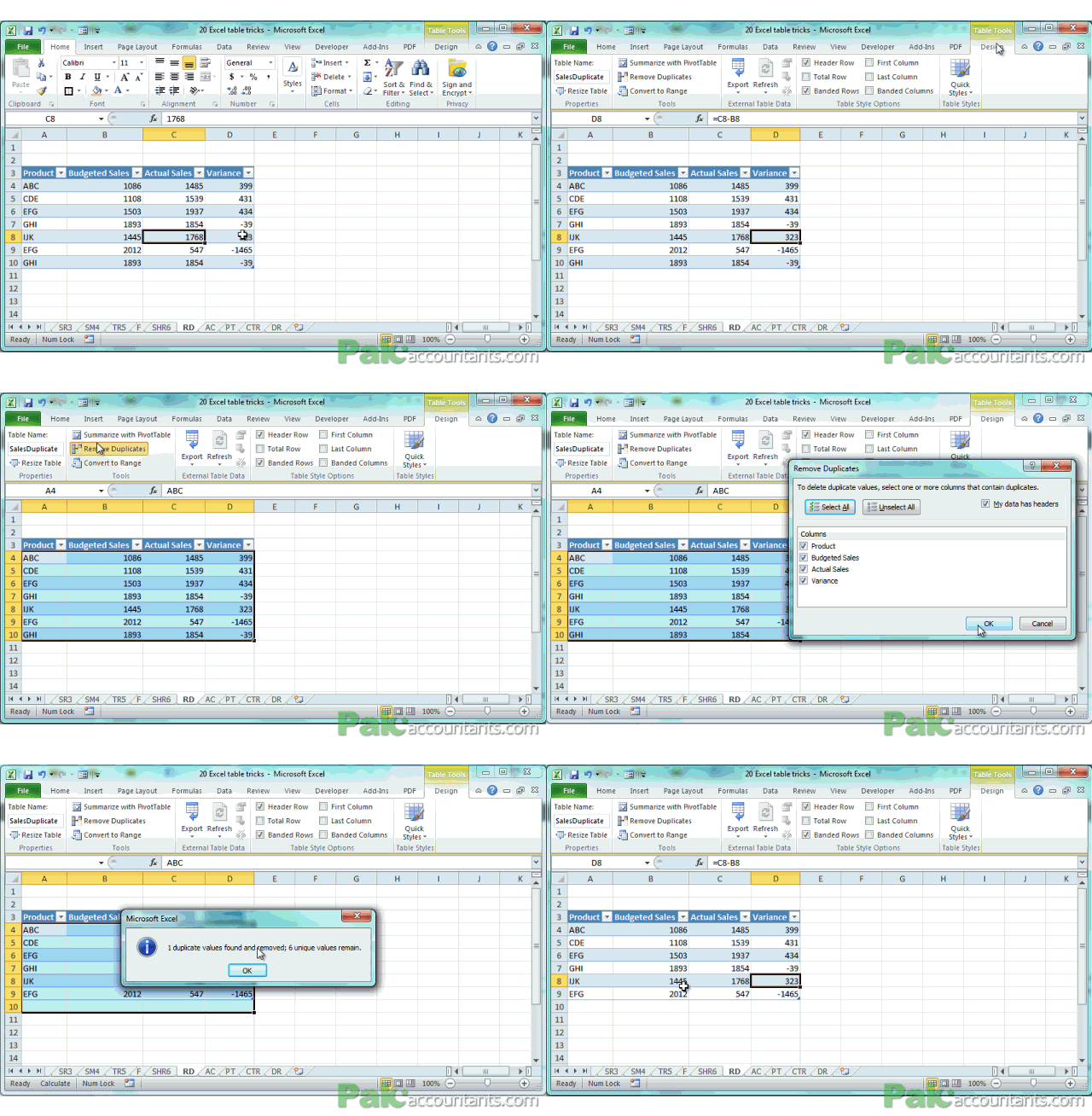
Although this does not count as a separate trick but still mentioning it as it appears in table contextual tab. I tried to find some unique use of this with tables that is different from normal remove duplicate but so far they are the same. But as it appears in contextual tab so discussing it as one
Excel Table Trick # 9. Hide/Show headers
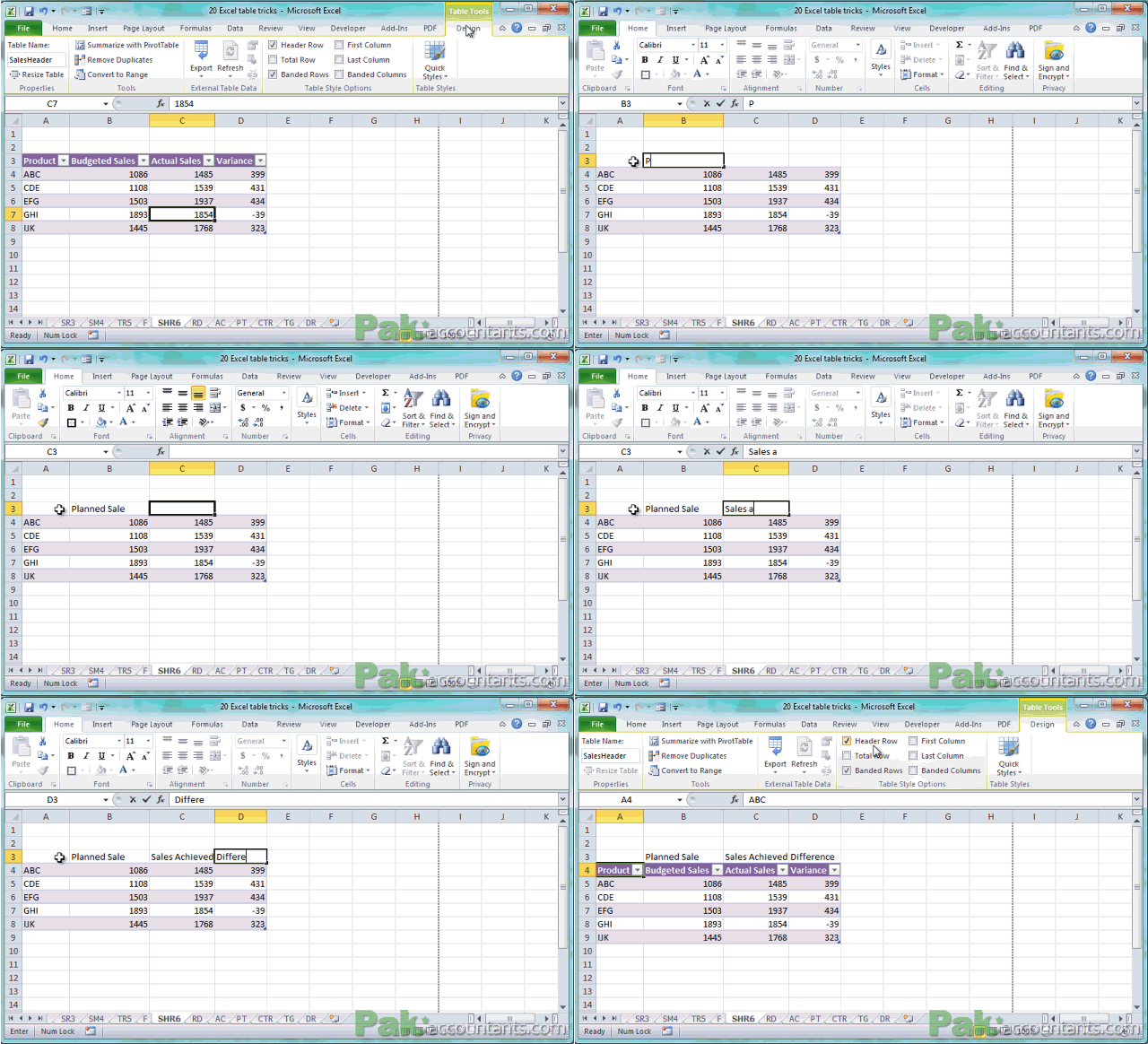
Don’t want to show table headers. Well you don’t have to delete that row. You can simply hide it by going to contextual tab>Table style options group> Uncheck Header Row. This will not only disappear in the worksheet but also from the print. Once hidden you can give another headers if you like with ease without affecting the actual table headers.
Excel Table Trick # 10. Covert table back to normal range
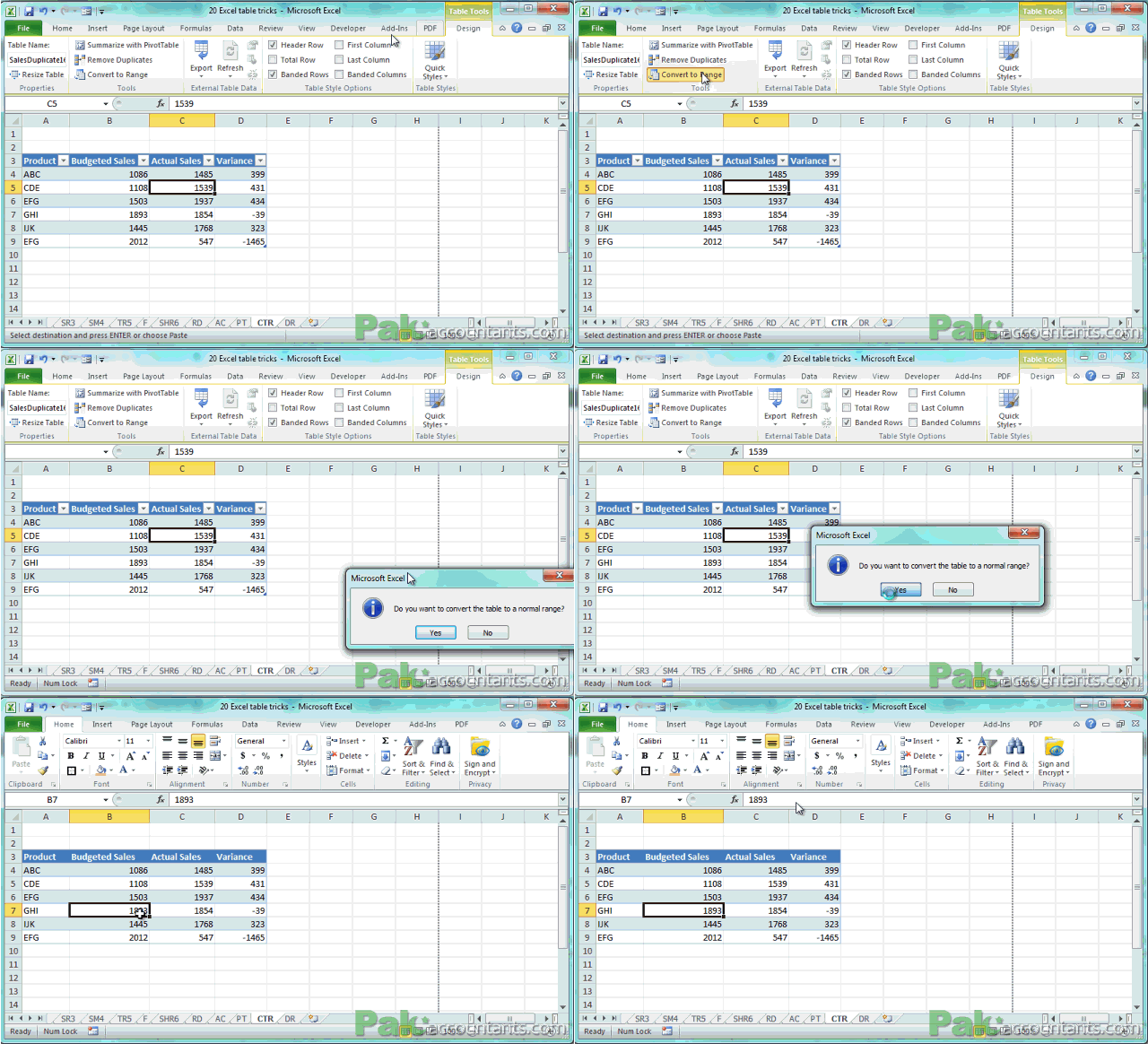
Not into tables anymore? Or for some reason you want to get rid of tables you can always get things done and click “convert to range” button in the tools group under table’s contextual tab. This will remove the table feature in a way that it dodges eyes. Colors and quick styling will be in place just tables have been drawn. You might need to do it if you want to export file to older versions of Excel as table feature comes in 2007 version of excel.
very resourceful material to learn excel in out
@Mike thanks 🙂 help spread the word so that others in need can also get it