
Excel Table Trick # 2. Resize as you advise! Without affecting other areas of worksheet
Already have the table and want to increase or decrease the number of rows and columns from it without affecting the other parts of worksheet. Consider it done!
You can do this by either of the following ways:
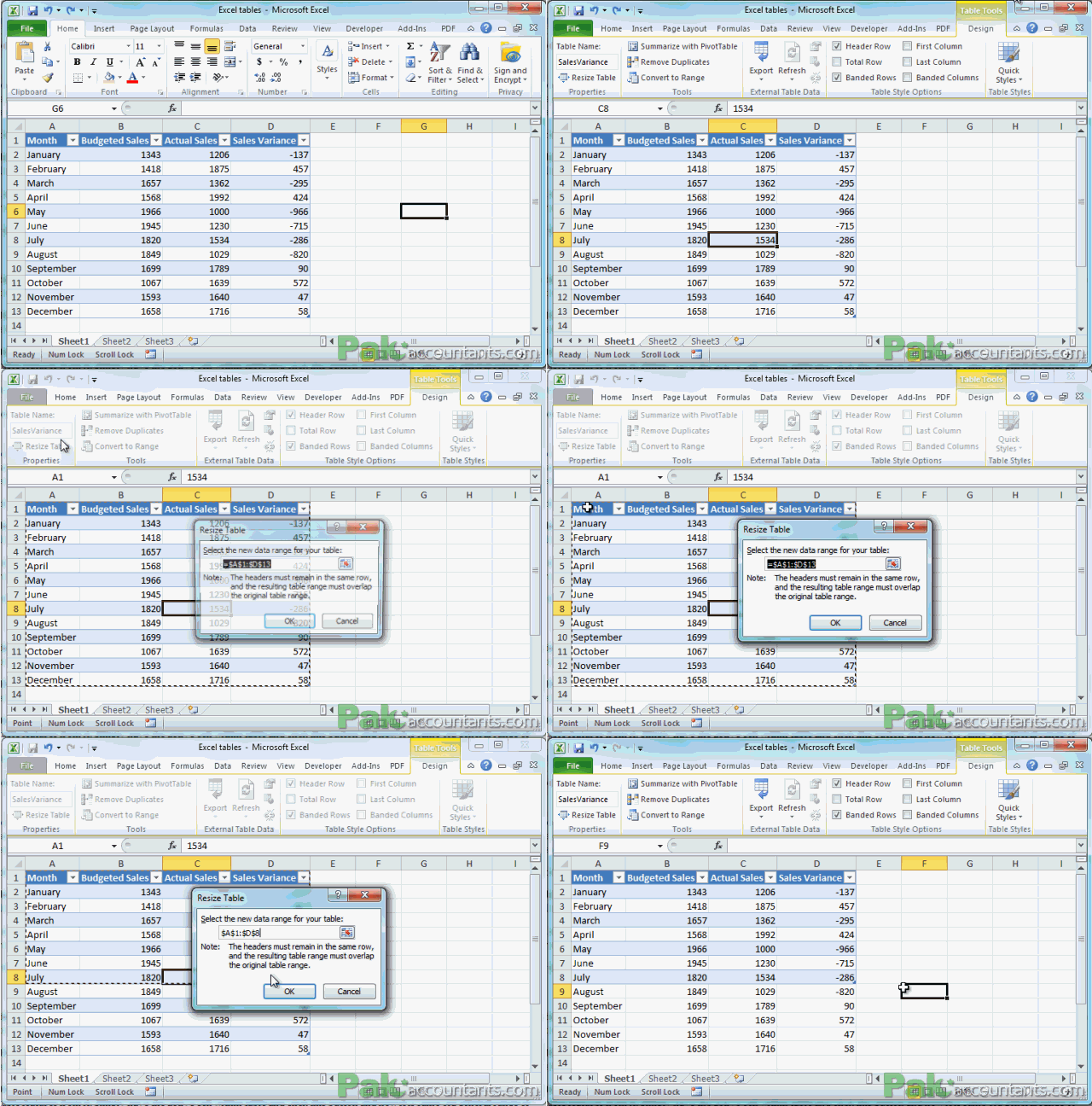
Have an active cell with in the table and go to contextual tab. In the Properties group click resize table button and make a fresh selection to include or exclude certain rows and/or columns. Remember you have to make the selection from the first cell of the table otherwise Excel will give an error. Remember even if you exclude certain part of table from new selection, data won’t get deleted its just that its not part of the table anymore. If you don’t want to keep it you will have to delete that manually.
Use the resize handler at the bottom right corner of the table. Click and drag and it will extend or exclude rows/columns for you from the table. Remember if you add new columns and they don’t have the headers already written then Excel will put in the generic headers as Column1, Column2 and so on. If you exclude certain rows and columns data won’t be deleted and you have to do it manually if you want to.
Use right click menu to insert or delete rows and columns. It works the same way as it is in case of normal rows and columns of worksheet but inside table it will affect table only and leave the other items in worksheet in their place.
very resourceful material to learn excel in out
@Mike thanks 🙂 help spread the word so that others in need can also get it