
31. Group specific worksheets’ tabs together
With multiple worksheets open within workbook. It is more comfortable if related worksheets are grouped together. To make it convenient select the worksheets you want to group together by holding Ctrl key and move the selected worksheets to be placed after particular worksheet by releasing the left mouse button.
In the following example worksheets named F, RD, AC, PT and CTR were selected using Ctrl key and then moved to be placed after DR worksheet.

32. Copy a worksheet
Simply select the worksheet or worksheets that you want to copy hold down CTRL key on the keyboard + press and hold left mouse button and drag, you will see the icon of file with plus sign in it. Release the left mouse button and it will make duplicates or copies of select worksheet(s).

33. Change Tab colors of multiple worksheets in one go
Select the worksheets the tabs of which you want to colorize differently using Shift or Ctrl key. Right click on any selected worksheet tab > Tab color and from the menu select the color. TANAA! all done in one go!

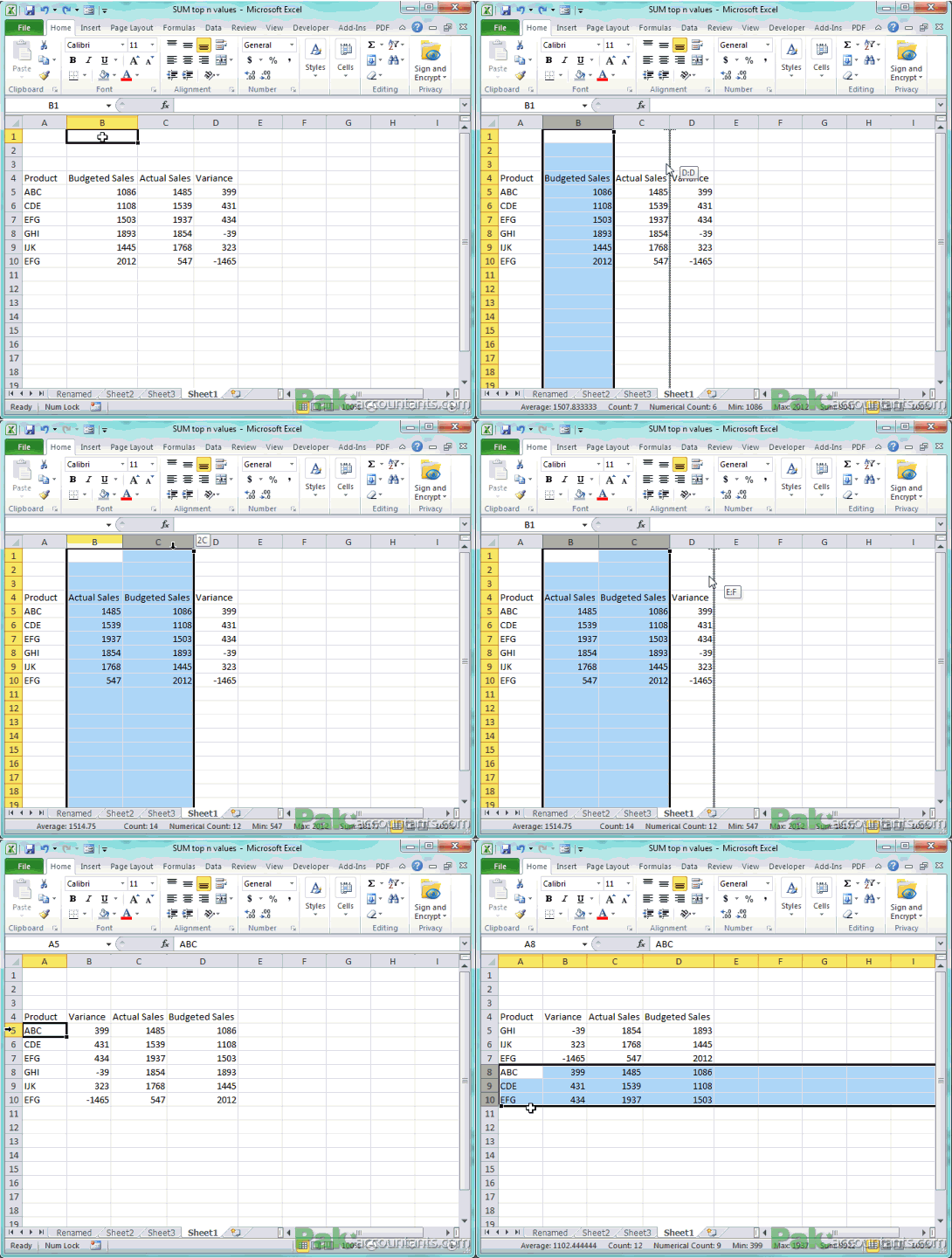
34. Move column(s) / Row(s) with ease
Select the column or row by left clicking on row/column title. Press and hold Shift key and with the mouse left click and hold on the border of selection and move in the direction where you want the column to fit. Grey margin will help you understand where on release column/row is going to be. You can do this even with multiple rows and columns at once.
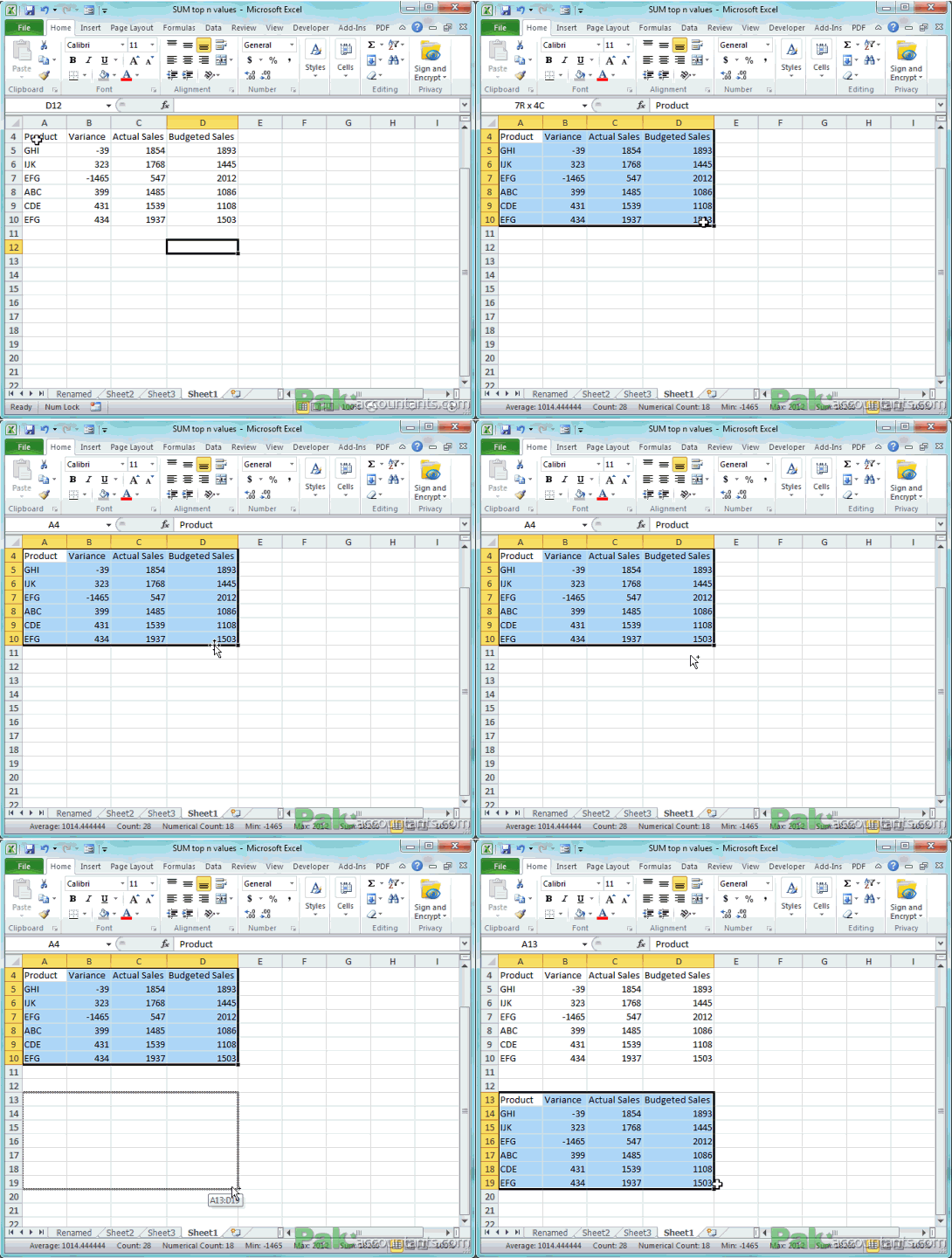
35. Quick copy selection
To quickly copy selected cells press and hold Ctrl key and drag the border of selection to get the copy and release mouse button to paste it.
36. Quick select table with/without header
Excel tables are awesome for many reasons but one cool thing is the ability to select entire table with one click. Just hover the cursor at the top left corner of the table and press left mouse button once. One first occasion it will select the enclosed data of the table. Clicking left mouse button again will select the entire table with headers.
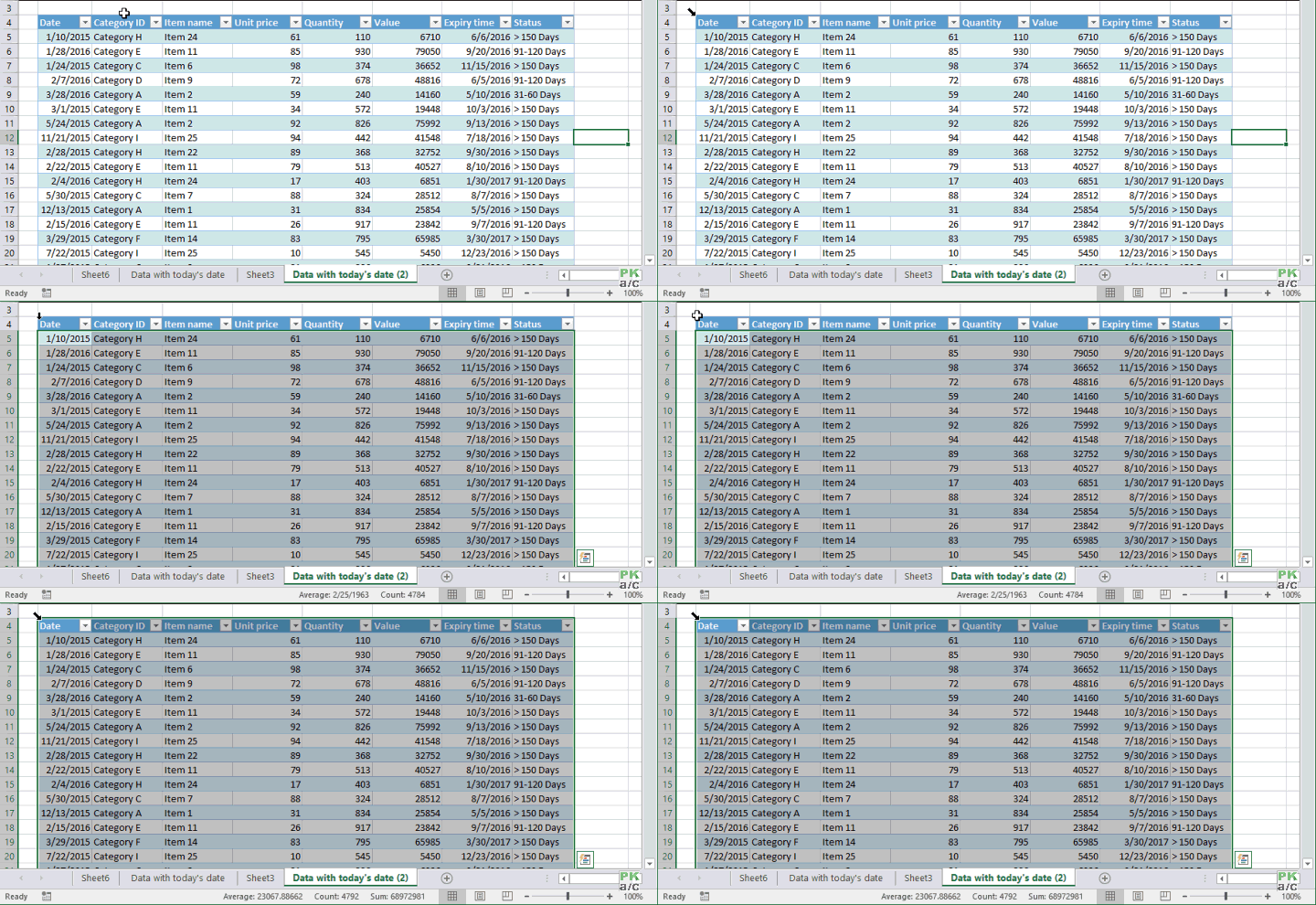
Bonus tip: Select the column/rows of table with a single click
Just like excel guides of columns and rows which you can use to select entire column or row, in Excel table, you can make selection of entire column or row with a single click by hovering the cursor at its edge.

And here you are. Am I missing any? Let me and others know about it and let’s make it a mega mouse tricks collection page. Hope you remember all of them. Only practice and using them frequently will help you remember them. But don’t forget to click on share, like and tweet buttons as well 🙂 You are free to click away now!

Asslam O Alakum
Masha Allah Its very good effort to support students and professionals.