
13. Jump to last row or column in the range
If you double click on the border or wall of active cell just when the cursor turn into four directions pointer then it will navigate you in the direction of border clicked i.e:
if left wall is double clicked it will navigate to far left cell in the same range in the same row. If few cells at left are empty then it will jump to last empty cell at left. If there is no filled cell at the left then it will navigate to first cell in the same row.

- if top wall is double clicked it will navigate to top most cell in the same range in the same column. If few cells cells at above are empty then it will jump to last empty cell above. If there is no filled cell above in the same column then it will navigate to first cell in the same column.
- If bottom wall is double clicked it will navigate to last filled cell within same range. If few cells at right are empty then it will reach the last empty cell. If there is no filled cell at right then it will not move.
- If right wall is double clicked it will navigate to last filled cell at right within same row in the same range. If few cells at right are empty then it will reach the last empty cell. If there is no filled cell at right then it will not move.
- If right wall is double clicked it will navigate to last filled cell within same range in the same column downwards. If few cells below are empty then it will reach the last empty cell below. If there is no filled cell below then it will not move.
Bonus Tip - Selection using double click
Using the same technique and based on same mechanism if you press and hold Shift key then excel will not only jump cells but also make selection. This is one way of instant selection with minimal effort.
Shift + Double click cell border or wall to select to last cell in the column. At left and right to last unfilled cell. Top to bottom selects the last filled cell in the same direction. Within range and out of range has different behaviour

14. Get in edit mode and double click again and drag to make selection
Double click the cell to enter edit mode. Its an alternative to pressing F2.
Double clicking cell won’t affect the existing content of the cell as it is simply activating edit mode.
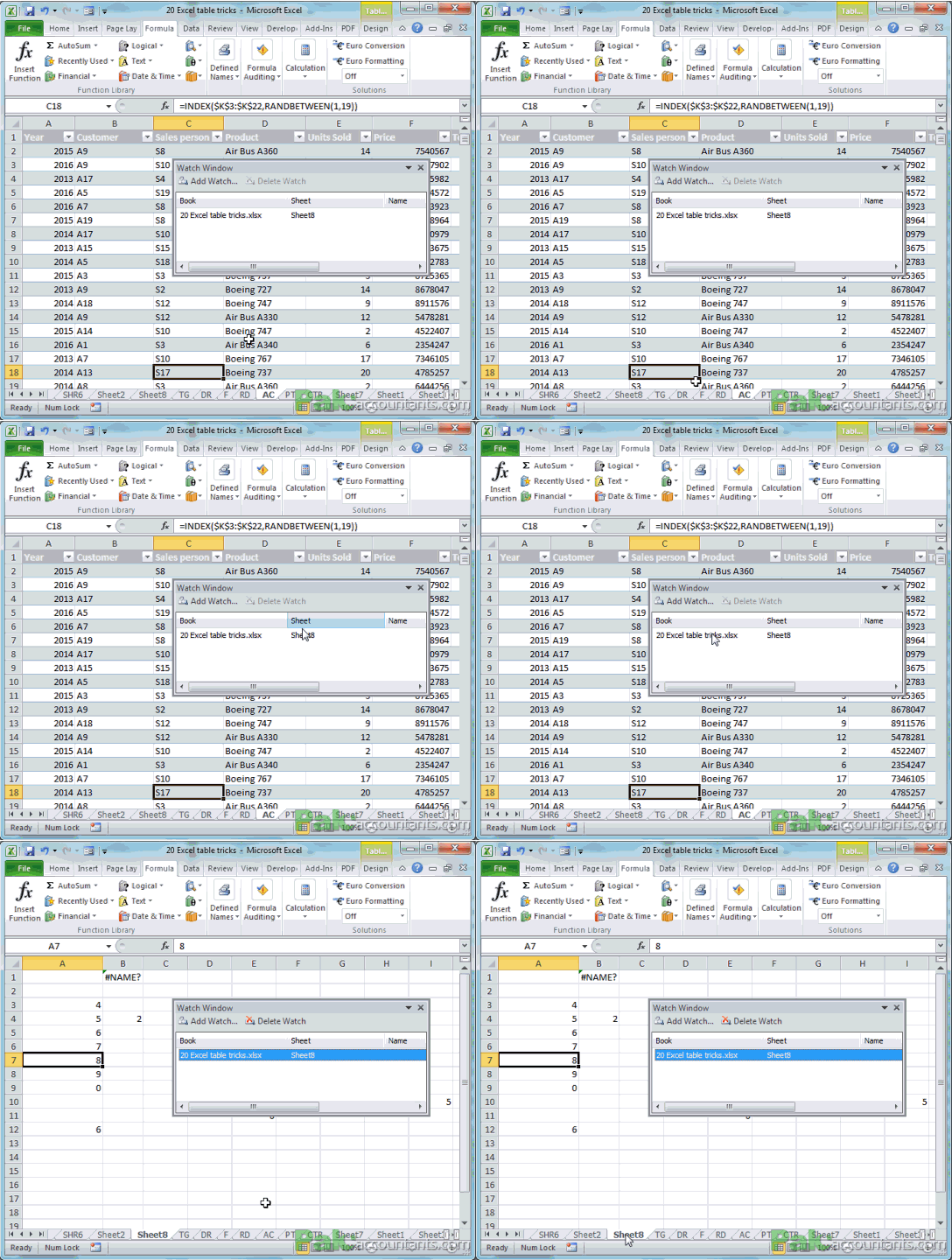
15. Double click in watch window to select that cell
If you have watch window activated and double click on any cell’s parameters then it will instantly go that cell. In the following animation the cell added to watch is on another worksheet named “Sheet 8” whereas currently active worksheet is “AC”. If cell parameters in watch window are double clicked then you will navigate to that cell
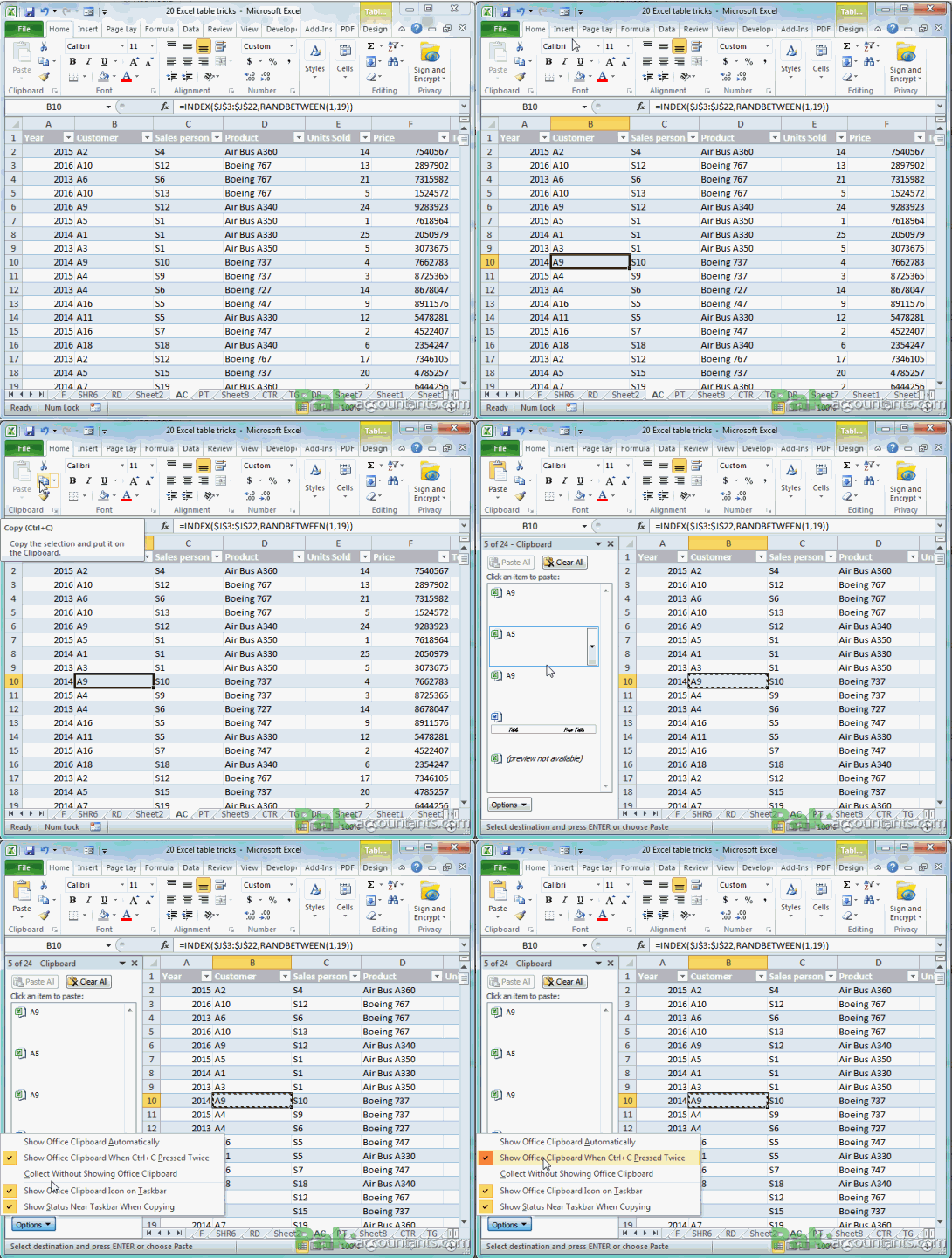
16. Show office clipboard task pane on double clicking copy button
If the option to open office clipboard on pressing Ctrl+C twice is active then pressing Copy button twice will not only copy the selected data but also kicks open the office clipboard.

Asslam O Alakum
Masha Allah Its very good effort to support students and professionals.